Windows · 免費個人使用 · 原始碼公開Windows · Free for personal use · Source available
快、乾淨、優雅的 PDF 編輯器A fast, clean, elegant PDF editor
大部分 PDF 軟體只做到其中一件事。SumatraPDF 開得快但不能編輯,Acrobat 什麼都能做卻要等八秒。LumenPDF 想三件都要。Most PDF software picks one. SumatraPDF is instant but cannot edit. Acrobat does everything and takes eight seconds to show you a page. LumenPDF is an attempt at all three.
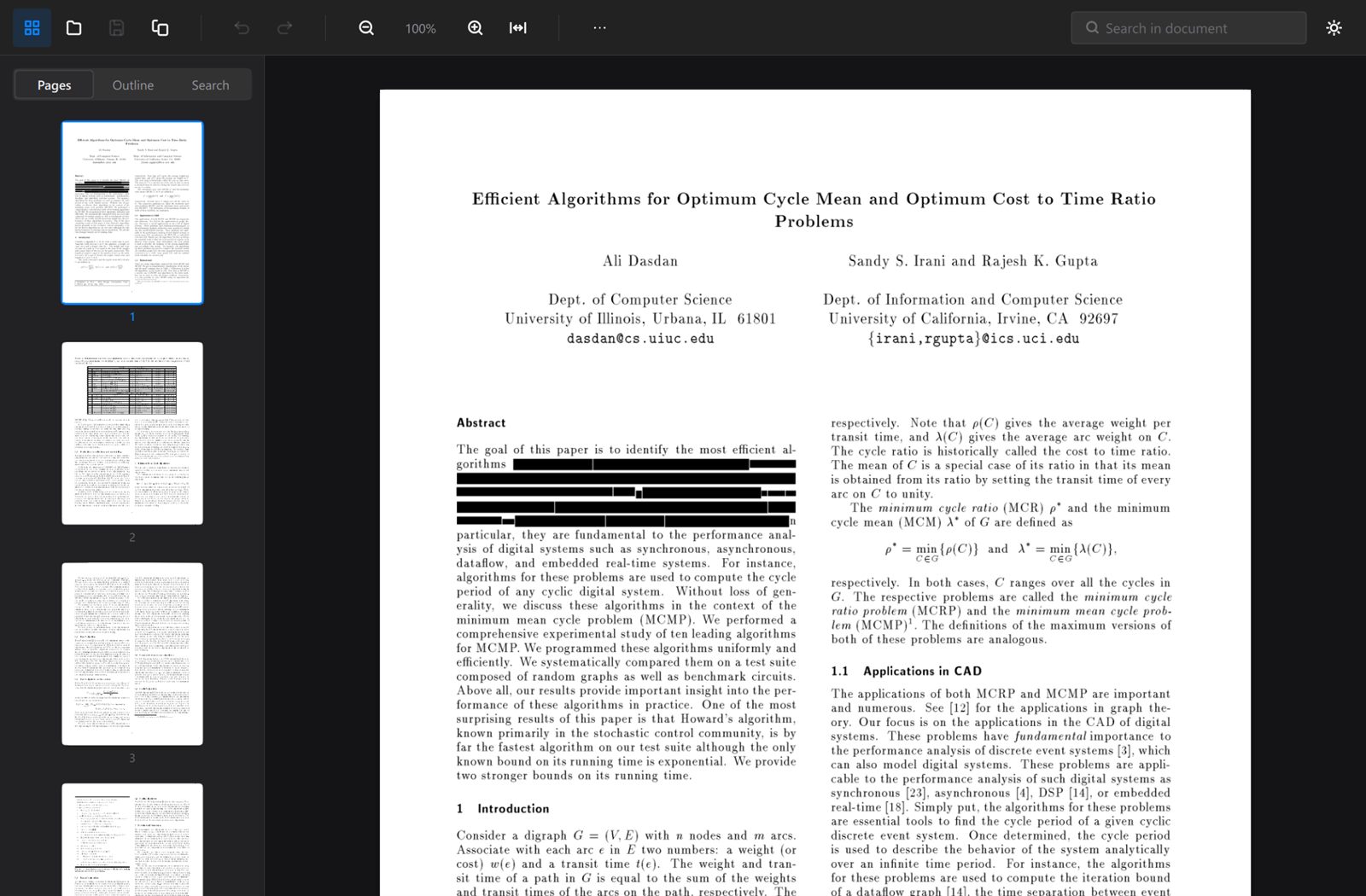
這段影片是應用程式自己逐幀錄下的,不是模擬畫面。腳本在
qml/App/DemoRunner.qml。Recorded frame by frame by the application itself, not a
mock-up. The script is qml/App/DemoRunner.qml.
287ms第一頁出現在螢幕上to first page on screen
527ms開啟 1000 頁文件to open a 1000-page file
144fps捲動 1000 頁不掉幀scrolling, no dropped frames
145MB1000 頁文件的記憶體memory, 1000-page file
速度是量出來的,不是講出來的Speed, measured rather than claimed
開 1000 頁的文件和開 3 頁的文件,成本幾乎一樣:527 ms 對 536 ms。頁面幾何在開檔時一次算好,渲染完全虛擬化,所以頁數不影響開啟成本。Opening a 1000-page document costs the same as opening a 3-page one: 527 ms against 536 ms. Page geometry is cached once at load and rendering is fully virtualised, so page count never enters the opening cost.
數字怎麼來的:倉庫裡有 scripts/benchmark.ps1,跑 5 次取中位數,你可以自己跑一遍。測試機為 RTX 4090、143 Hz、3840×2160。頁面渲染在背景執行緒,GUI 執行緒從不接觸 PDFium——這是捲動不掉幀的原因。Where the numbers come from:scripts/benchmark.ps1 is in the repository — 5 runs, median, run it yourself. Measured on an RTX 4090 at 143 Hz, 3840×2160. Pages rasterise on a worker pool and the GUI thread never touches PDFium, which is why scrolling holds vsync.
該有的都有Everything you need
閱讀、標註、整理頁面、填表單、匯出、壓縮。全部可復原,全部有回歸測試守著。Reading, annotating, page management, forms, export, compression. All undoable, all covered by regression tests.
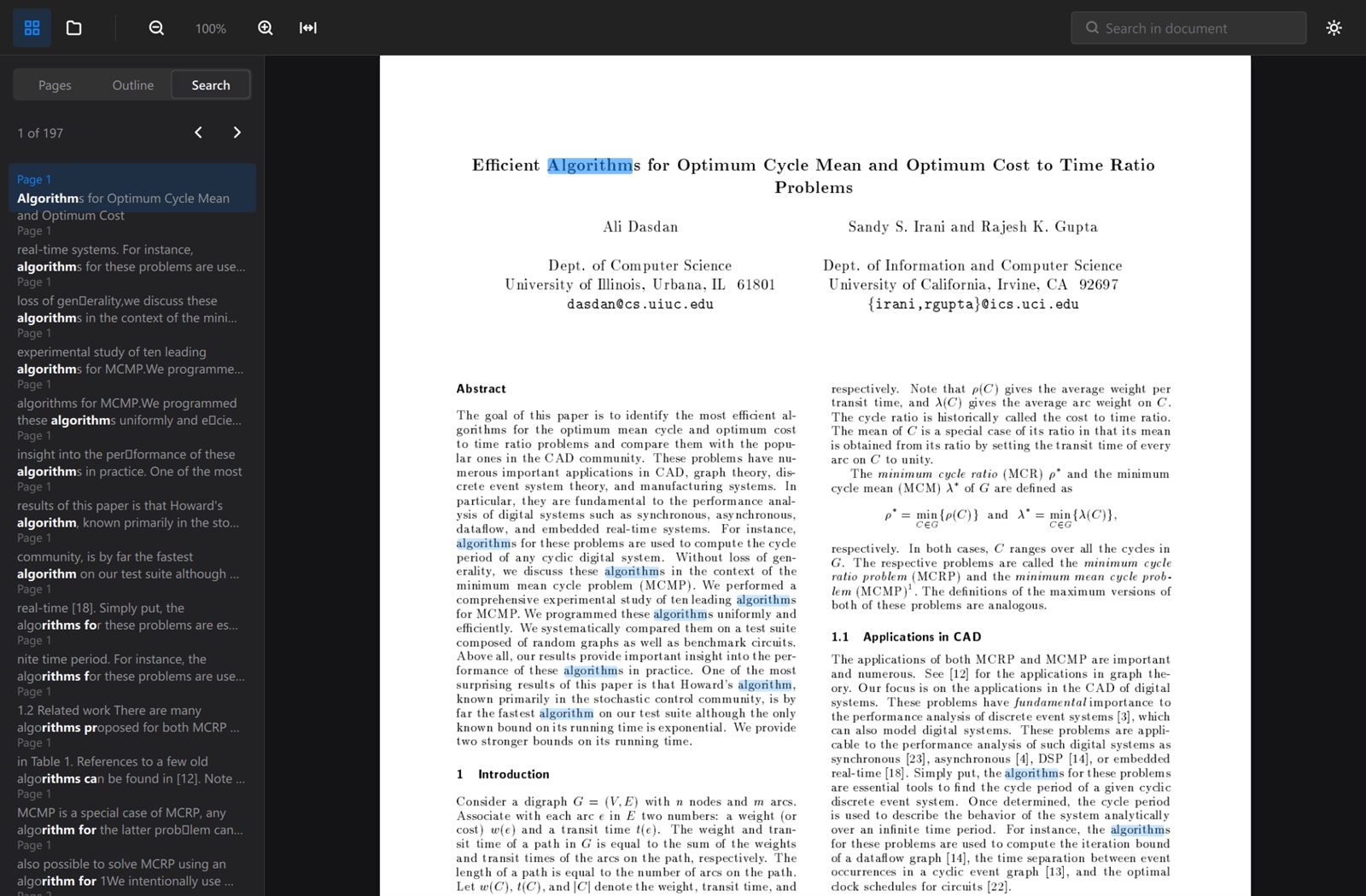
全文搜尋Full-text search
245 頁、1028 個命中,130 毫秒。結果邊掃邊出現,掃完之前就能用。1028 matches across 245 pages in 130 ms. Results stream in while the scan is still running.
大綱與縮圖Outline and thumbnails
可折疊的文件大綱,縮圖側欄可直接旋轉、刪除、匯出單頁。A collapsible outline, and a thumbnail rail where you can rotate, delete or export a page directly.
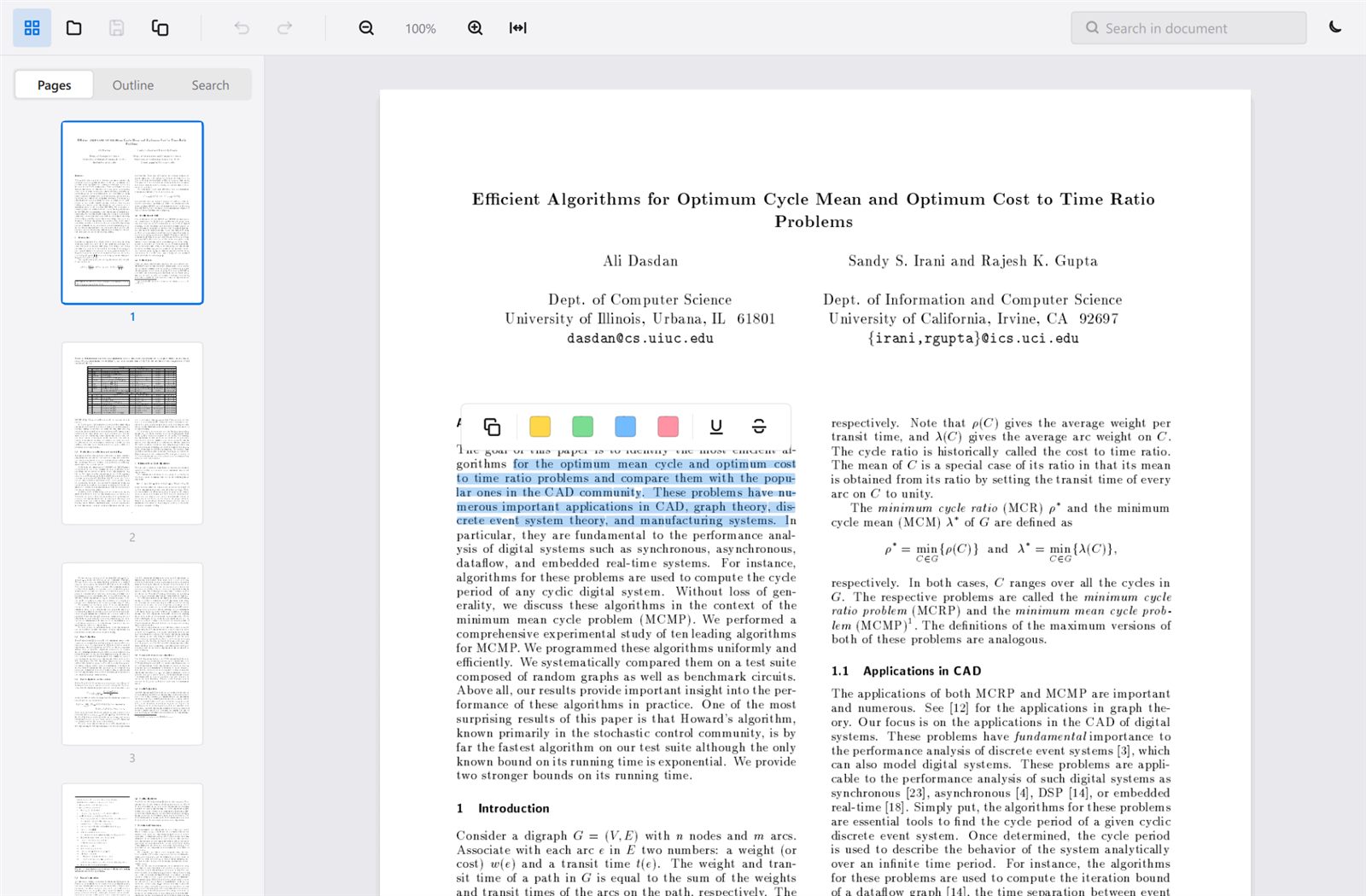
標註Annotations
螢光標記、底線、刪除線,四種顏色。寫出的是標準 PDF 標註,別的軟體讀得到。Highlight, underline and strike-through in four colours, written as standards-conformant PDF markup other software reads.
手寫簽名(圖章)Handwritten signature (stamp)
直接畫,存成向量路徑而不是點陣圖——放大到 800% 依然銳利。這是墨跡圖章,不是密碼學數位簽章:它不證明是誰簽的,也不會在文件被改動後失效。Draw it. Stamped as vector paths rather than a bitmap, so it stays sharp at any zoom. This is an ink stamp, not a cryptographic digital signature — it does not prove who signed, and it does not break if the document is altered afterwards.
列印Printing
指定頁面範圍、份數、灰階、符合頁面或實際大小。也可以直接印成 PDF,而且會保留原本的頁面尺寸。畫面上看到什麼就印出什麼——標註、表單內容、OCR 文字層全都在。Page ranges, copies, greyscale, fit-to-page or actual size — and printing to a PDF file keeps the source page size. What is on screen is what comes out: annotations, filled fields and OCR layers included.
加密文件與連結Encrypted files and links
有密碼的 PDF 會請你輸入密碼,而不是說「打不開」;密碼只用一次,不會存起來。文件內的跳頁連結可以點,外部網址則一定先讓你看清楚真正的目標再開——PDF 上顯示的文字和它實際連到哪裡是兩回事。A password-protected PDF asks for the password instead of refusing to open; the password is used once and never stored. Internal jumps follow on click, external links always show you the real target first — what a PDF prints and where its link goes are unrelated strings.
表單填寫Form filling
點欄位就能打字,文字欄位、核取方塊、單選鈕都支援,存回檔案。Click a field and type — text fields, checkboxes and radio buttons, written back into the document.
匯出與壓縮Export and compress
頁面轉圖片、純文字匯出,以及只降取樣「畫得太小卻放太大張」的圖片。Pages to images, plain text, and a reduced copy that downsamples only images oversized relative to how large they are drawn.
OCR:掃描檔變成可搜尋OCR for scanned files
在圖片底下寫入一層看不見的文字。畫面完全不變,但可以搜尋、選取、複製。語言用 Windows 內建的辨識器,離線、免額外下載。Writes an invisible text layer under the image. The scan looks identical but becomes searchable, selectable and copyable. Uses Windows' own recogniser — offline, nothing extra to download.
Google DriveGoogle Drive
從雲端開啟、編輯完存回同一個檔案,ID 與分享設定都保留。權限僅限你親手開啟的檔案。需要自行註冊憑證,見下方說明。Open from Drive, edit, and save back to the same file — keeping its ID, sharing and history. Scoped to files you explicitly open. Needs your own credentials; see below.
塗黑是真的把文字刪掉Redaction that actually redacts
在黑框底下留著文字是最常見的洩密方式——只要複製貼上就露餡。LumenPDF 不是畫黑框,是把該頁點陣化後替換掉,底下什麼都不剩。A black rectangle drawn over text leaves the text in the file for anyone who copies it out. That is how redaction failures make the news. LumenPDF rasterises the page and replaces its contents, so there is nothing underneath to recover.
代價我們也說清楚:被塗黑的那一頁會失去可選取的文字,確認對話框直接寫明這件事。一個安全工具如果會讓你意外,它就不值得信任。驗證方式不是看截圖,是把存檔後的檔案重新抽取文字——該頁從 4731 個位元組變成 0,其他頁一字未動。And the cost is stated: the affected page loses its selectable text, and the confirmation dialog says so. A security tool that surprises you is not trustworthy. It is verified by extracting text from the saved file, not by looking at the black box: the page goes from 4731 bytes to zero while every other page stays intact.
每一種文字都算數Every script counts
文字擷取是 PDF 工具最容易默默出錯的地方,而且錯了很難察覺:複製出來的字看起來對,貼到別處卻搜不到。阿拉伯文與希伯來文的順序、越南文疊起來的聲調符號、天城文與泰文的組合字、沒有空白的漢字——每一種都有自己的失敗方式。Text extraction is where PDF tools quietly go wrong, and the failures are hard to notice: copied text looks right but matches nothing when pasted. Right-to-left order in Arabic and Hebrew, stacked tone marks in Vietnamese, clusters in Devanagari and Thai, scripts written without spaces — each fails in its own way.
LumenPDF 對十種書寫系統做回歸測試,每次改動都跑。中文曾有四個真實 bug——包括抽出的是「康熙部首」而非正規漢字,讓複製的文字在別處永遠搜不到。四個都修好了,四個都有測試守著。LumenPDF regression-tests ten writing systems on every change. Chinese alone had four real bugs — including extraction returning Kangxi-radical lookalikes, so copied text matched nothing anywhere else. All four are fixed, and all four are held by tests.
做不到的,我們也寫出來What it does not do
產品頁通常只講好話。這一段講限制,因為你遲早會遇到。Product pages usually only list wins. This one lists the limits, because you will meet them eventually.
文字編輯是「修正」,不是排版Text editing corrects, it does not typeset
按 Ctrl+E 可以點一段文字直接改。但真實 PDF 幾乎都是子集嵌入字型——只含文件用過的字符。輸入字型裡沒有的字,底層會產生亂碼。Press Ctrl+E and click a run to edit it. But real PDFs embed font subsets containing only the glyphs already used, so typing a character the font lacks produces garbage underneath.
所以每一次編輯都會讀回來驗證,不通過就還原並告訴你原因。毀掉你的文件卻回報成功,比拒絕一次編輯糟糕得多。適合改錯字、換數字、調標籤。So every edit is read back and verified, and one that does not survive is rolled back with an explanation. Corrupting your document and reporting success is far worse than refusing. Good for typos, numbers and labels.
Google Drive 需要你自己註冊一組憑證Google Drive needs your own credentials
整合已經寫好了,但 Google 用 client ID 識別的是「應用程式」,取得它意味著同意 Google 的條款並具名一個法律主體——那必須由使用者或發行者自己完成,不能代勞。The integration is written, but Google identifies applications by client ID, and getting one means agreeing to Google's terms as a named legal entity. That is not something anyone can do on your behalf.
申請只需幾分鐘,步驟寫在 GOOGLE-DRIVE-SETUP.md。權限只要 drive.file:只能碰你親手開啟或本程式建立的檔案,看不到你雲端硬碟的其他任何東西——這是 Google 強制的,不是我們口頭保證的。It takes a few minutes; the steps are in GOOGLE-DRIVE-SETUP.md. The scope requested is drive.file only: files you explicitly open or that LumenPDF created, and nothing else in your Drive. That boundary is enforced by Google, not promised by us.
簽名是圖章,不是數位簽章The signature is a stamp, not a digital signature
畫上去的簽名是一個向量墨跡圖章。它不證明簽名的人是誰,文件事後被改動也不會失效。需要有法律效力的電子簽署,請用別的工具——LumenPDF 目前不提供 PKI 數位簽章,也不做簽章驗證。A drawn signature is a vector ink stamp. It does not prove who signed, and it does not break if the document is altered afterwards. If you need a legally recognised electronic signature, use something else — LumenPDF does not currently create or verify PKI digital signatures.
安裝檔沒有數位簽章The installer is not code-signed
Windows SmartScreen 第一次執行時會警告,要按「其他資訊 → 仍要執行」。程式碼本身沒有任何不同——那個警告是關於發行者身分未經驗證。憑證是發給經過驗證的法律實體、每年數百美元的東西;簽章功能已經寫好在等憑證。每個版本都附 SHA256SUMS.txt,可以自己核對下載檔。Windows SmartScreen warns on first run — More info → Run anyway. Nothing about the code is different; the warning is about the publisher being unidentified. A certificate is issued to a verified legal entity and costs a few hundred dollars a year, and the signing support is implemented and waiting for one. Every release publishes SHA256SUMS.txt so you can check the download yourself.
目前只有 WindowsWindows only, for now
macOS 和 Linux 在規劃中。所有平台相關的程式碼從第一天就隔離在一個檔案裡,圖形後端也只在一個地方選擇——但「能編譯」和「能用」是兩回事,所以還沒承諾時程。macOS and Linux are planned. Every platform-specific call has been confined to one file since day one and the graphics backend is chosen in one place — but compiling and shipping are different things, so there is no date.
OCR 用的是 Windows 的辨識器OCR uses Windows' recogniser
好處是離線、不用多下載一百多 MB 的語言資料、而且用的是你系統上已經裝好的語言。代價是可用語言由 Windows 決定,而且這是目前唯一沒有跨平台方案的部分。That keeps it offline, avoids shipping a hundred megabytes of language data, and uses whichever languages your system already has. The cost is that the available languages are Windows' to decide, and this is the one part with no cross-platform story yet.
程式會列出你機器上實際可用的語言,而不是假裝每一種都支援。The app lists the languages your machine actually has, rather than pretending every language works.
介面是自己畫的The interface is hand-built
沒有用任何現成的 UI 主題。圓角是連續曲率的 squircle 而不是圓弧接直線;直接操作用彈簧曲線,狀態變化用減速曲線,沒有任何線性動畫;圖示是向量路徑,任何解析度都銳利。No off-the-shelf UI theme. Corners are continuous-curvature squircles rather than a circular arc meeting a straight edge. Direct manipulation moves on a spring, state changes ease out, and nothing is linear. Icons are vector paths, crisp at any DPI.
深色與淺色都是一等公民,切換時連原生標題列一起跟著換。這些細節單獨看都很小,加起來就是「順手」和「將就」的差別。Dark and light are both first-class, and switching takes the native title bar with it. Individually these are small; together they are the difference between an app that feels right and one you put up with.
下載Download
Windows 10 或 11,64 位元。安裝程式不會搶走 PDF 的預設開啟方式——它只是出現在「開啟檔案」清單裡,由你選。Windows 10 or 11, 64-bit. The installer does not seize the .pdf default association — it simply appears in "Open with" and lets you choose.
安裝檔沒有數位簽章,Windows 第一次執行會警告——按「其他資訊 → 仍要執行」。每個版本都附 SHA256SUMS.txt,可以自己核對。The installer is not code-signed, so Windows warns on first run — More info → Run anyway. Every release ships SHA256SUMS.txt so you can check the download yourself.
免費,開放原始碼,Apache 2.0 授權——商業使用也免費,不必問。如果它對你有用,來幫忙比付錢更有價值。Free and open source under Apache 2.0 — commercial use included, no need to ask. If it is useful to you, helping out is worth more than paying.